4

I am running Linux Mint 13, with a KDE 4 desktop manager. I would like to launch applications from a terminal (konsole in my specific case) and setting the exact size of the window and the location of the window. As an example, if I launch Kate and Chromium from a terminal, I want Kate's window the cover the left-half of my screen and I want Chromium to cover the upper-right quarter of my screen.

How can I accomplish this?

ps: I have a 15.6" screen set to a 1920x1080 resolution.

Gilles 'SO- stop being evil'
  • 807,993
  • 194
  • 1,674
  • 2,175
Aeronaelius
  • 573
  • 4
  • 9
  • 18
  • 2
    For some applications: you may use `-geometry WIDTHxHEIGHT+X+Y` – ninjalj Oct 08 '13 at 16:15
  • 1
    [This link](http://www.x.org/archive/X11R6.8.1/doc/X.7.html#toc6) explains the comment above but only some applications accept `-geometry`. Also, some apps don't use pixels but columns and rows. –  Oct 08 '13 at 16:20
  • 1
    If `-geometry` isn't giving you the result you want, try [wmctrl](http://tomas.styblo.name/wmctrl/). `chromium && wmctrl -r chomium -e 'g,x,y,w,h'` You might need a sleep delay before wmctrl. Its a bit more complicated to figure out which chromium window to control when you have multiple open. – kalhartt Oct 08 '13 at 18:26
  • With `-geometry` you can also leave off width and height. You can also use negative numbers to offset from the right-hand and bottom edges of the screen. – kurtm Oct 08 '13 at 22:14
  • Maybe I am using it wrong but `wmctrl` did not work for me. I will play around with it some more in the weekend. – Aeronaelius Oct 10 '13 at 11:45

2 Answers2

4

If you don't want to specify the geometry/position during startup, but permanently, simple use Kwin's rule system:

  • Launch the desired application
  • Right-click on the title-bar or use Alt+F3
  • More Actions
  • Special Window Settings
  • Tab: Window matching
    • Check, whether the values were detected correctly, otherwise use the Detect Windows Properties button to capture the data of the target window
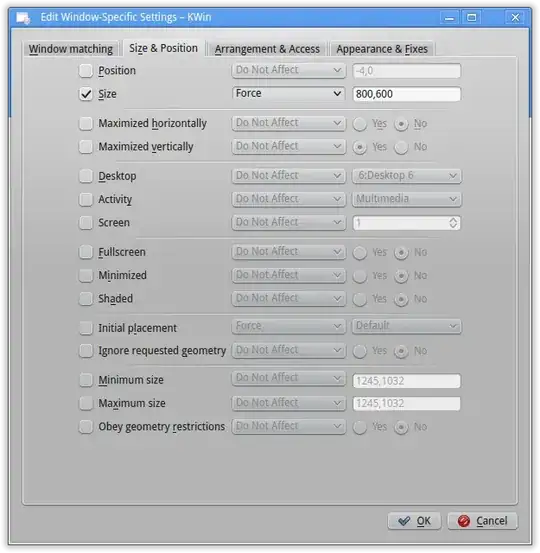
  • Tab: "Size & Position"
    • Enable the checkboxes of Position and Size
    • Select, when to apply the Position/Size (Apply Initially, Force, etc.)
    • Set the value for Position and/or Size

You can do way more than just this using the window rules, see also: Screenshot of window specific settings in kwin.

Elias Probst
  • 1,053
  • 7
  • 13
  • I managed to get this working with some programs, however some others have quite random behaviour. Some times it works some times it doesn't. – Aeronaelius Oct 10 '13 at 11:44
3

Run xwinifo and click on the window of the application you want to start.

Note down the line at the bottom

-geometry WxH+X+Y

where W, H are the width and Height, X, Y are the coordinates of the start of the window.

Then try starting the application with that as a command arguements e.g. for Konsole:

konsole -geometry WxH+X+Y

It should end up reasonably close to where you want. My Y coordinate was about 22 pixels too low - but it gives you something to work with. Perhaps the header of the application (decoration?) is not counted properly?

Anyway do this for all windows you want. Put into a shell script and you can run that to start them all up. e.g.

#! /bin/sh

konsole -geometry WxH+X+Y &

Where the exact values for W/H/X/Y are obtained from the wininfo command.

AdminBee
  • 21,637
  • 21
  • 47
  • 71
Andrew
  • 31
  • 1