1

I need to somehow copy the installer to hard drive (local disk), so that I can plug this prepared hard drive to another computer, boot the installer from hdd and install it (on same hdd).

Example:

You have a 400gb hdd (internal) you create a 1 partition (of size 600mb), format in ext2 or something like that, extract debian installer there, install grub to MBR and configure so that it can boot the debian installer.

Target user start the target pc with installer on that partition and start debian setup (with no need to have installation cd, nor USB disk). User can anytime reinstall their system by returning to this setup (as a recovery option in grub)

How can I do this?

Petr
  • 1,691
  • 4
  • 21
  • 31
  • Is this an external USB hard drive? – Faheem Mitha Oct 01 '13 at 08:57
  • If USB, this might be a duplicate of http://unix.stackexchange.com/questions/6419/how-to-install-debian-from-usb-using-full-size-image-not-netinstall. In any case, this looks like something that one could just look up in a manual. – Faheem Mitha Oct 01 '13 at 09:11
  • no this is not external USB this is the only disk inside of computer – Petr Oct 01 '13 at 10:04
  • I would expect that you can make a second partition, copy the contents of the CD or DVD onto it, install a boot loader in the MBR and point that to the "installer installation", and it'll mostly work. Your best bet would probably be a variant that is prepared for installation from a USB mass storage device, but it'd depend on the particulars of the installer. You'd just have to be really careful when you partition the drive from within the installer. – user Oct 01 '13 at 11:16
  • 2
    If you don't *have* to do the installation on the target system, a much more practical approach might be to give a VM free rein on that physical disk and run the installation inside the VM. Then transfer the (now installed and bootable) hard disk to the target system. Is that an option, and if not, then why not (maybe someone can suggest an easier way)? – user Oct 01 '13 at 11:18
  • Did something like this with slackware ages ago. The trick is to use two partitions, one for setup boot + setup and one for main boot. (Chain main boot from setup boot). This is a little tricky. – Joshua Jul 31 '14 at 15:43

1 Answers1

1

So, is this your case?

enter image description here

What Operating System are you running at your computer 1? If you have an already working Debian system on HDD1, you could just clone it to HDD2 and run without any installation. Just use bitwise copy program dd:

dd if=/dev/sda of=/dev/sdb

I assume here that HDD1 is /dev/sda and HDD2 is /dev/sdb Then before plugging HDD2 of the computer 1, try to change device boot order in BIOS and try to boot from HDD2, not HDD1 as usual.

WARNING0: I suppose, that your HDD2 doesn't contain any information and you can overwrite it totally.

WARNING1: make sure, that your /dev/sdb corresponds to HDD2; if it corresponds to HDD1, you could overwrite your OS on computer 1.

EDIT: Debian suggests another way: http://www.debian.org/releases/stable/amd64/apas02.html.en#howto-getting-images-hard-disk, see booting from hard disk. They suggest, that you partition you HDD2, put kernel image and initrd ramdisk onto a boot partition and copy and .iso file somewhere on that disk. Then, you install bootloader there, e.g. GRUB, reboot from that disk, GRUB loads kernel and ramdisk, kernel somehow finds the .iso image with installer and starts it.

EDIT 2: Ok, I decided to write a digestion of how I would've done the whole thing, but I'm not sure about certain points. It's just what I'd do at your place.

I assume, that you don't have any valuable information on you hdd2. I also assume, that you run Windows on Computer1 off HDD1.

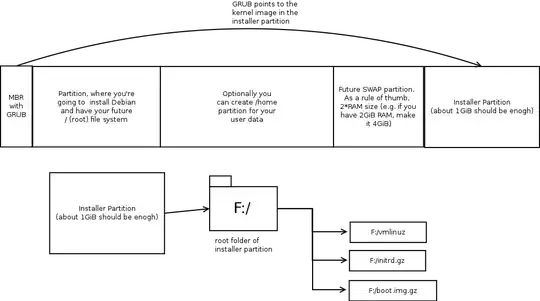
1) Partition your HDD2 with some partitioning tool. You'll have 1 partition, where the installer will reside and it will stay untouched during the installation process. I'd put the installer partition to the back side of the HDD2, cause, I'd have it removed after I install Debian.

There can be no more than 4 primary partitions on a disk with MBR. If you want more, you can create a special Extended partition and create logical partitions within it. Linux is ok with logical partitions, Windows used to have troubles.

2) Download hd-media installation kernel image (vmlinuz), installation ramdisk () and installer image () e.g. from debian archive: http://ftp.debian.org/debian/dists/squeeze/main/installer-i386/current/images/hd-media/ and put them to the Installer partition of HDD2. Note that this link is for i386 architecture, if you want e.g. 686 (64-bit) kernel, load it from appropriate (686) folder of debian ftp.
enter image description here

3) Install GRUB to the MBR, DOS compatibility region and/or beginning of your installer partition. See this to understand, where GRUB resides and how it works. As you're using Windows, you'll have to use something like GRUB4DOS. GRUB configuration should be as described here. Or you can use other bootloaders, such as LILO or Loadlin, they should be better suited for running kernel from NTFS or FAT filesystems, used by Windows machines. Consult to Debian website.

4) Plug HDD2 off and attach it to computer2; set device boot priority in BIOS to boot from HDD2.

5) Pray.

6) Try to boot the HDD2. Hopefully, BIOS will start GRUB, GRUB will start the installation kernel, supply it with installation ramdisk, kernel will start, mount the installation ramdisk, installation ramdisk will start its init script, init script will mount the installer image and run init script of the installer. Installer will start and show you interface, where you could change partitions on HDD2, choose partitioning scheme and finally install Debian.

7*) Boot Debian. Optionally you can remove installer partition (e.g. with GParted) and merge the free space with /home partition.

Boris Burkov
  • 3,931
  • 4
  • 25
  • 37
  • I'm pretty sure that WARNING2 applies and that this won't work. Unless the installer is specifically written to copy the entire CD image into memory first, it will begin overwriting itself as soon as it partitions the hard drive. – Jander Oct 01 '13 at 13:49
  • @Jander Yeah, me to. I edited the answer. But what I don't understand about the standard way, suggested by Debian, is how GRUB tells the kernel where to find the .ISO? It's not mentioned here: http://www.debian.org/releases/stable/amd64/ch05s01.html.en#boot-initrd – Boris Burkov Oct 01 '13 at 14:04
  • @Bob finding the image will probably be a part of the initrd. – peterph Oct 01 '13 at 22:21
  • @peterph Yes, now I found it. It's probably specified n `init` script of initrd to search for an ISO file in toplevel directory of the drive as described here: https://wiki.gentoo.org/wiki/Early_Userspace_Mounting – Boris Burkov Oct 02 '13 at 00:12
  • This is kind of what I want to do, but I would prefer to have setup preinstalled there, rather than working installation of debian. So that when user who start the target pc (second one) would have debian setup started, so that they can install the OS themselve with their configuration as they like it – Petr Oct 03 '13 at 11:52
  • @Petr I've edited post and added more information on step-by-step installation process. – Boris Burkov Oct 03 '13 at 13:23
  • I never said I am using windows :) but I will try this... I am quite uncertain how could it be enough just to copy the iso to root and expect it to get mounted (extracted?) and executed after initrd is loaded. Or is there a script for that inside of initrd? – Petr Oct 03 '13 at 15:07
  • @Petr Exactly. There's an `init` script in initrd (that's why different initrds would mount different roots, see `/usr/src/initramfs/init` here: https://wiki.gentoo.org/wiki/Early_Userspace_Mounting), which is responsible for mounting the root fs, and this one is supposed to read an iso file from the toplevel of the partition. Personally, I used boot flash to install Debian, but hope you will succeed. :) Got to say, Debian installation manual is very inaccurate and unfriendly to newcomers. – Boris Burkov Oct 03 '13 at 16:06