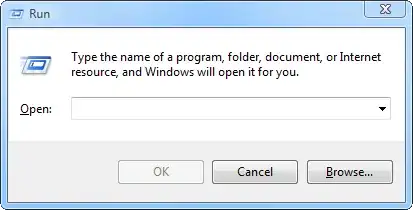
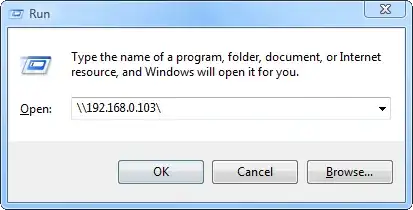
This depends on which desktop environment you are using.
In GNOME, KDE, Unity and Xfce the default keyboard shortcut for the run prompt is Alt + F2.
As jofel pointed out, xdg-open is a desktop-independent tool for opening a file or URL in a preferred application. Inside a desktop environment, xdg-open simply passes the arguments to a desktop environment specific equivalent (gvfs-open in GNOME and Unity, kde-open in KDE or exo-open in Xfce).
While the desktop environments might not support UNC paths, they generally do understand URIs. Since in this case you want to access a Windows SMB share, the corresponding URI scheme is smb, yielding an URI like smb://192.168.0.103.
Generally you should be able to pass an URI like this to xdg-open, either in the run prompt or in a shell running in a terminal emulator, and have xdg-open open the specified URI in the preferred application associated with the particular URI scheme:
xdg-open smb://192.168.0.103
In the case of GNOME, which is the default desktop environment in Debian, this would, by default, be the Nautilus file manager. Unfortunately it seems that there is a possible bug with xdg-open, which prevents the opening of SMB shares, unless they have been mounted beforehand. This should be handled by the Gnome Virtual File System (GVFS) automatically, but for some reason it might not work with xdg-open.
As a workaround, you could pass the URI directly to nautilus in the Run prompt (or shell). Alternatively you could open the SMB share via the Connect to server dialog in Nautilus (File > Connect to Server) or type the smb URI in the Location bar (Go > Location or triggered via the keyboard shortcut Ctrl+L).