28

In Linux Mint, how to get the same information presented in the lower half of the below picture?

Output by CPU-Z in Windows:
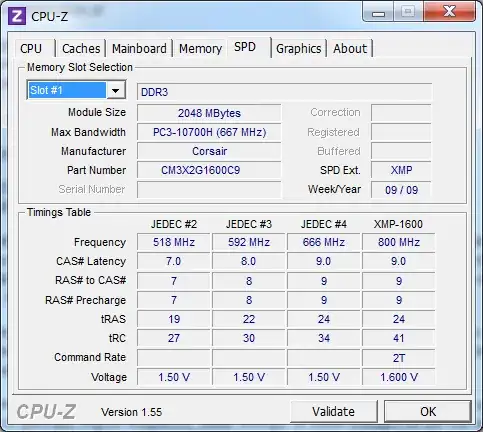
enter image description here

What I've tried:
Running CPU-Z 1.66 in Wine as Windows 95, 98 and XP.
CPU-G
i-nex
sudo lshw
sudo dmidecode
decode-dimms

gom
  • 381
  • 1
  • 3
  • 5
  • 4
    With `sudo dmidecode -t memory` you can find manufacturer and part number and then it's not hard to find out CAS on the web – Hrvoje T Feb 02 '17 at 11:46

1 Answers1

32

decode-dimms is probably what you're looking for, but apparently you need to have the correct i2c module loaded before it works. Follow this tutorial:

http://www.richud.com/wiki/Ubuntu_See_Live_RAM_Timings_Decode_DIMMS

I got it working after these steps:

sudo aptitude install i2c-tools
sudo modprobe eeprom
sudo modprobe i2c-i801
decode-dimms
Martin von Wittich
  • 13,857
  • 6
  • 51
  • 74
  • 1
    `decode-dimms` is the closest I've found, it doesn't show different frequencies supported. – gom Sep 24 '13 at 14:18
  • in my case eeprom was enough (no `sudo modprobe i2c-i801`), running `decode-dimms` initially outputs "No EEPROM found, try loading the eeprom or at24 module", so I've tried as advised. – Martian2020 Nov 27 '21 at 04:25