You have 2 choices.
Wireless USB Bridge
You can either get a little wireless/USB device that will share the printer out via wireless. You then connect to it using IPP such as ipp://<ip address of wireless bridge>/USB_queue.
A device such as this would be up to the task: NETGEAR PS121 USB 2.0 Mini Print Server.
We use such a device where I work. This particular device presents the printer over the network using LPD, so we access the USB printer attached to it like this:
lpd://192.168.1.109/L1
Shared via computer
You can attach the printer to a PC like normal, and then using CUPS share that printer out over the network. Again users can access the printer using IPP such as ipp://<linux host w/ printer>/<name of printer.
Additionally if you setup Samba, you can share the printer out using Samba to Windows PCs as well as Linux systems instead of IPP.
Sharing the printer
Once you've got the printer detected on a Linux host you can either access the printer configuration GUI from the pull downs or from a terminal:
/usr/share/system-config-printer/system-config-printer.py
This will bring up the following dialog:
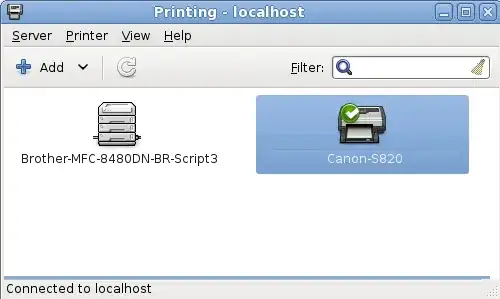
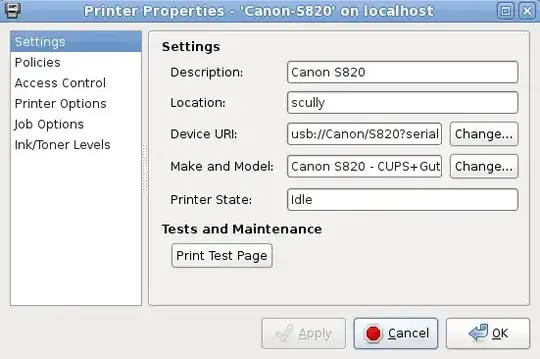
Here you can see that the USB printer is detected by the lost Linux host and is working correctly:
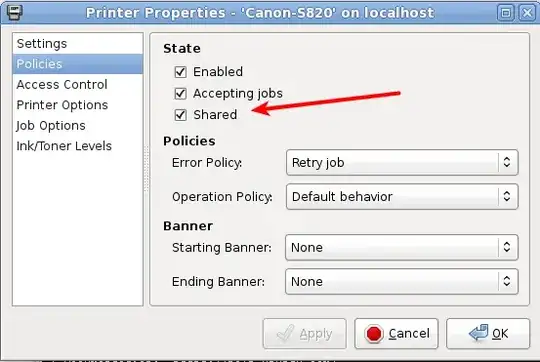
Now select the "Policies" section and check the shared printer checkbox:
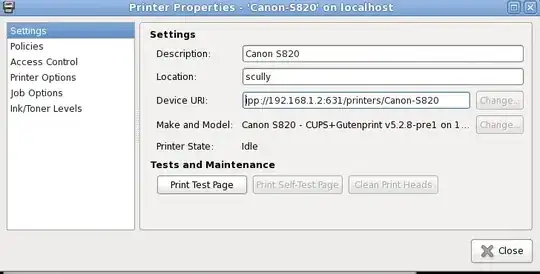
Now on a client you select the printer like so:
References


