0

On Manjaro, I have installed com.slack.Slack in version 4.23.0 through flatpak.

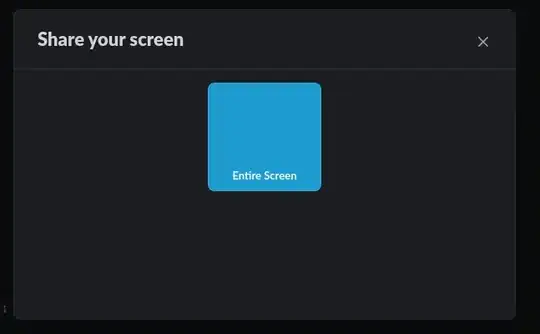
Now, when I try to share a screen, I unexpectedly get a "Screen Share" popup that appears to be coming from Gnome. I expect to not see that at all but that I can select the app / screen directly from the underlaying slack Share Screen popup.
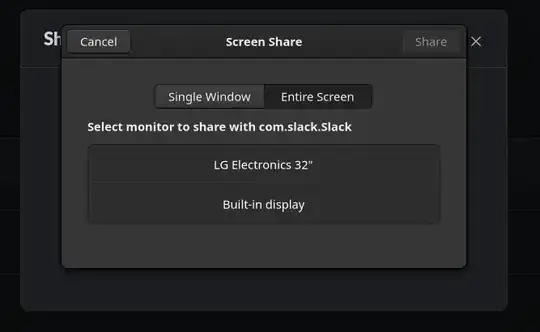
Overlay Screen Share that does not react to user input

The additional Screen Share popup would be fine, yet it also does not react on clicks. I cannot Cancel, Share and cannot even a select a screen nor an entire screen.

How to properly enable screen share?

k0pernikus
  • 14,853
  • 21
  • 58
  • 79

4 Answers4

2

You can interact with the Gnome pop-ups but they are in a stack and only the topmost is responsive. Find it by using Super + backtick to cycle between them. This requires some trial and error. To close them, you must close the topmost first, then the others in order.

  • Thanks. While I still consider this a workaround it at least made me able to close all the superfluous windows. – k0pernikus Jan 17 '22 at 16:56
1

I had the same issue with the Zoom Flatpak, where I couldn't share the screen due to the Wayland/Flatpak combo. I solved this by installing a handy GUI called flatseal from flathub.

Inside flatseal, you can set the permissions on the various flatpak applications; this includes a pass-through to for the application to access other software running on your Wayland session.

To do this:

  1. Run flatpak install flathub com.github.tchx84.Flatseal in the terminal.
  2. Exit the application you are going to set the permissions for.
  3. Open the application and navigate to the desired application in the left-side navigation menu.
  4. Under 'Socket' there is a radio button which says 'Wayland windowing system' - click to enable it.
  5. Open the application and see if it works.

If you'd rather not install anything else, you can open $HOME/.var/app/<YOUR.APP>/config/<YOUR.APP>.conf, and edit the file manually.

telometto
  • 1,825
  • 2
  • 8
  • 29
1

It is probably a Linux display server issue : check which display server you are using : echo $XDG_SESSION_TYPE : it may be displayed Wayland if you have this problem. Indeed, this display server often have issues.

So I advise you to change your display server to X11 (also called Xorg):

  • Temporarily : Log out from your session, and on the lock screen, click on the settings button and select a X11 or Xorg field.

  • or by default:

    • edit this config file :sudo nano /etc/gdm/custom.conf
    • Under the [daemon] section, uncomment or add this : WaylandEnable=false
    • You may have to restart your laptop

This will change your display server to X11 and it should fix your screen sharing.


Get to know more about what is a display server : here

Sources : here and here

:)

0

Not a solution but a workaround to at least get a screen share going:

  • click on the underlaying slack popup
  • chose entire screen
  • now the Share Screen overlay pops up again and can be interacted with

Slack Share your Screen popup


This still has the problem that a lot of dead "Screen Share" windows are opened that can't be interacted with nor closed.

k0pernikus
  • 14,853
  • 21
  • 58
  • 79