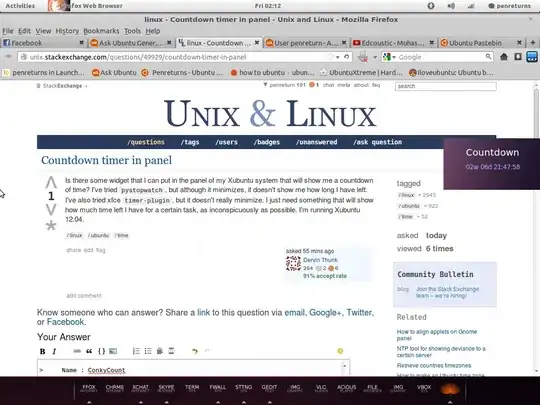
Is there some widget that I can put in the panel of my Xubuntu system that will show me a countdown of time? I've tried pystopwatch, but although it minimizes, it doesn't show me how long I have left. I've also tried xfce timer-plugin, but it doesn't really minimize. I just need something that will show how much time left I have for a certain task, as inconspicuously as possible. I'm running Xubuntu 12.04.
Asked
Active
Viewed 3,138 times
5

jagrg
- 103
- 3

Dervin Thunk
- 3,429
- 4
- 23
- 21
2 Answers
2
My answer will be not on panel. Im using conky to make it visible on desktop
Step 1.
Install conky
sudo apt-get install conky
Step 2.
Pearl Package
You may need to install libdate-manip-perl and libtime-modules-perl packages.
sudo apt-get install libdate-manip-perl libtime-modules-perl
Step 3.
Save at home folder
Locate ${alignc}Countdown in .conkycount to change Countdown text.
Locate "October 26, 2012" in .countdown to change date.
Step 4.
Give permission to script
chmod +x ~/.countdown
Step 5.
Run your conky
By terminal:
conky -c ~/.conkycount
Make startup application
Open startup application
Name : ConkyCount

Command : conky -p 20 -c ~/.conkycount
Result

penreturns
- 144
- 2
-
That's really nice. Thanks. I do need it for the panel though. I'm recording a screencast that takes the whole screen save the panel, that's why I needed this. Impressive work, though. – Dervin Thunk Oct 04 '12 at 18:24
-
Thanks! This conky will visible on top of all application, just tweak the alignment, size so the conky will not disturb your workspace. ;) – penreturns Oct 04 '12 at 18:28
-
Btw, cant you just right click you pystopwatch and click at visible on top? – penreturns Oct 04 '12 at 18:49
-
Darn, that's a great idea. Accepted... sooo simple! :) – Dervin Thunk Oct 04 '12 at 19:31
-
Yeah.. Enjoy Xubuntu! – penreturns Oct 04 '12 at 19:34
-
6@penreturns, the paste.ubuntu.com links are now dead :( – DK Bose Aug 28 '14 at 12:01
0
You can redirect the countdown time to a tmp file and use conky to display its contents. Here's a script based on @penreturns' answer that does this for as long as the timer is running. IOW the config won't load when the timer is idle. Anyhow, there are two steps you need to follow. First, you need to add the timer script to your bin directory and make it executable (see @penreturns' answer):
#!/bin/bash
conky -q -c ~/.conky/.conkyrc-timer &

pid=$(pgrep -f conkyrc-timer)
TMPFILE=$(mktemp -t countdown.XXXXXXXX)
date=$(($(date +%s) + $1 * 60))

function cleanup {
    rm -f "$TMPFILE"
    [ "$pid" ] && kill "$pid"
    clear
    exit 1
}
trap 'cleanup' INT EXIT

while [ "$date" -ge "$(date +%s)" ]; do
    time=$(date -u --date @$(("$date" - $(date +%s))) +%M:%S)
    echo -ne "$time\r"
    echo -ne "$time" > "$TMPFILE"

    if [[ $(cat "$TMPFILE") == "00:00" ]]; then
    echo -ne "Time expired" > "$TMPFILE"
    fi
    sleep 0.1
done
Then you need to create a config file (for example: ~/.conky/.conkyrc-timer) with:
conky.config = {
   alignment = 'bottom_right',
   double_buffer = true,
   use_xft = true,
   gap_x = 0,
   gap_y = 0,
   own_window = true,
   own_window_type = 'dock',
   update_interval = 0.1,
}

conky.text = [[
$alignr${exec cat /tmp/countdown*}\
]]
And that's all. Now when you run timer N from the terminal you should see the elapsed time on the lower right corner of your screen.
jagrg
- 103
- 3