19

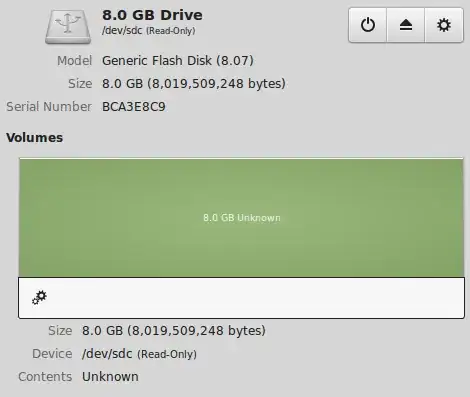
I have a USB disk which does not allow me to format/mount/unmount or created partitions on it.

enter image description here

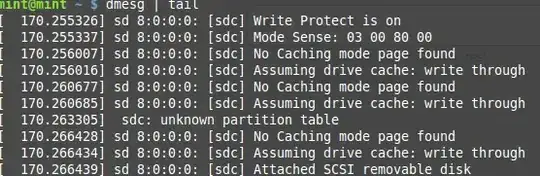
Using dmesg | tail gives me the following result:

enter image description here

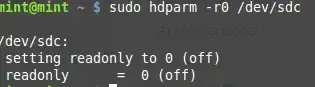
I found this post on AskUbuntu and tried using the accepted answer. I get the following result, but it is still read-only:

enter image description here

umount doesn't work. Says umount: /dev/sdc: not mounted

Any help on how to remove the write protection will be much appreciated.

kRiZ
  • 291
  • 1
  • 2
  • 4
  • Assuming this is a full size SD card in some card-reader have you tried to move the actual switch it has on the side? Or if it is missing putting some tape around the side where it used to be to make the reader think it is no longer write protected? – Anthon Jul 15 '15 at 10:58
  • It is a USB flash drive. – kRiZ Jul 15 '15 at 10:59
  • If there is no data on it, have you tried to make a partition table on it or just write something with `dd if=/some/file of=/dev/sdc` to see what happens? – Anthon Jul 15 '15 at 11:03
  • `dd: failed to open '/dev/sdc': Read-only file system` – kRiZ Jul 15 '15 at 11:09
  • There was data on it. At the moment, it doesn't allow me to create partitions, or format it. – kRiZ Jul 15 '15 at 11:21
  • I am running out of ideas, sorry. Make sure you dump as shown above from dmesg includes everything from just before the moment you insert the stick. It is better to paste the messages in (format all the lines as code with Ctrl+K), so people can cut and paste and find particular message parts via Google. – Anthon Jul 15 '15 at 11:40
  • Yeah, that's the entire output from `dmesd` – kRiZ Jul 15 '15 at 11:41
  • I had hoped there was something more before the message that the stick is write protected (e.g. as a result of a read-error on some sector, that would as least have let you know to replace the stick). Have you tried rebooting your system and/or putting the USB in another machine? – Anthon Jul 15 '15 at 11:47
  • Windows - asks me to format and the gives an error message saying write protected. Mac - "The disk you inserted was not readable by this computer." and Linux as above. Also, does not show any partitions and doesn't allow me to create one. – kRiZ Jul 15 '15 at 11:51
  • What is the model of this usb drive? May be it has some special protection features and works only in some specific operating system. – gena2x Jul 15 '15 at 11:58
  • Are you sure there isn't some physical switch to turn the drive writeable? Some flash memories do have such a switch. – lcd047 Jul 15 '15 at 12:00
  • Nope, now switch. @gena2x It's a Sony Vaio, don't remember the exact model number. – kRiZ Jul 15 '15 at 12:02
  • You shouldn't umount anything as nothing is mounted. Try hdparm -r0 /dev/sdc and try dd if=/some/file of=/dev/sdc after that. – gena2x Jul 15 '15 at 12:39
  • I have the same problem after using the USB stick as an ubuntu boot device. The solution works for me is to use the tool "Disks". First, delete all the partitions on USB. Then Format the USB as FAT. – Yongliang Li Nov 19 '19 at 22:02

5 Answers5

7

Try:

sudo hdparm -r0 /dev/sdb

as suggested gena2x.

AFAIK, this type of "protection" is automatically enabled on physical failure occurrences. This is basically a way for you to recover your data before something critical happens (fried disk).

So at one point in time, the firmware of the USB disk detected a failure.

Now, bugs happen. False positives too. But it could also be the beginning of the end for your disk (or even the end of the end if the command does not work).

5

HI man I'm have same problem like you and i'm follow this tutorial: link

A. First we need to delete the old partitions that remain on the USB key.

Open a terminal and type sudo su
Type fdisk -l and note your USB drive letter.
Type fdisk /dev/sdx (replacing x with your drive letter)
Type d to proceed to delete a partition
Type 1 to select the 1st partition and press enter
Type d to proceed to delete another partition (fdisk should automatically select the second partition)

B. Next we need to create the new partition.

Type n to make a new partition
Type p to make this partition primary and press enter
Type 1 to make this the first partition and then press enter
Press enter to accept the default first cylinder
Press enter again to accept the default last cylinder
Type w to write the new partition information to the USB key
Type umount /dev/sdx1 (replacing x with your drive letter)

C. The last step is to create the fat filesystem.

Type mkfs.vfat -F 32 /dev/sdx1 (replacing x with your USB key drive letter)
Loc Vu
  • 51
  • 3
  • 1
    it worked until "Type w to write the new partition information to the USB key": `fdisk: failed to write disklabel: Operation not permitted` – stallingOne Jul 05 '19 at 12:50
  • This is what I get: $ sudo fdisk /dev/sda1 Welcome to fdisk (util-linux 2.33.1). Changes will remain in memory only, until you decide to write them. Be careful before using the write command. fdisk: cannot open /dev/sda1: Read-only file system – raphael75 Jun 09 '21 at 16:32
2

Seems like the same question as this superuser topic, and this answer worked for me. It says: Download the file AlcorMP_5T2F_6T2F_2011-11-10.02, and execute it (in MS Win). Except this last resort, it's likely that usual methods don't work.

Wow. There're two problems. 1) You shouldn't do that kind of things. At least, after running it, you should restore the factory default of the OS. 2) I searched for that tool, but it seems to be gone. alcormicro.com used to deliver it.

Well...If you want, I can send it to you via email. I'm the author of the tool "at-home-modifier" From that page, you can find my email from the file "README". Of course you should not run executables received from someone you can't trust.

More recommendable advise is: I'm sorry, but give it up.

teika kazura
  • 322
  • 2
  • 16
2

I tried to create a bootable usb using my pendrive. Some error occurred and and the drive became read only. I could not format it in windows or gparted in linux directly. Could not create partitions using fdisk either. Desperately tried many solutions and they did not work. Thought of installing linux on the drive so that it could remove the read only and later I could format it. Following are the steps.

  1. Booted linux mint in live cd mode.
  2. Chose install linux mint option
  3. Chose USB drive for installation
  4. Deleted the previous partition
  5. Created new ext4 with / as option
  6. Warning appeared and read Unable to open /dev/sdd read-write
  7. Now, I removed my pen drive and re-inserted
  8. Opened gparted again and tried to formated it and it worked this time
  9. Created a new FAT32 partition

Hope this works for you too. All the best.

vetri
  • 21
  • 1
2

I had this same problem with a thumb drive lately.

What I did was, other than checking permission issue etc.

  1. lsusb This finds device with vendor id and prod id to use in,
  2. usb_modeswitch with -d option.

This worked for me without something as extreme to re-format the drive.

mnemonic
  • 21
  • 2