67

I'm running Ubuntu Desktop 14.04 as a VM on a mac with vmware fusion. I'm getting space warning issues and now want to expand from 20GB to 200GB.

I powered off the VM and on the vmware side increased the allocated disk space:

  1. Power off the VM
  2. VMWare Fusion -> Virtual Machine -> Settings -> Hard Disk (SCSI)

It then warned me that I should increase the partition size within the guest VM, which is unfortunate because I was hoping this would be automatic.

Looking at the disk usage analyzer inside of Ubuntu, it only currently sees the original 20 GB. How do I increase this to the 200 GB I allocated?

I'm looking for better direction than what is posted here.

From the Disks app, I see:
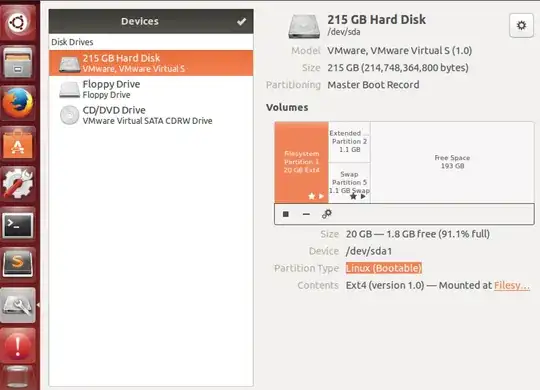
enter image description here

tarabyte
  • 4,166
  • 10
  • 36
  • 48
  • REsize option greyed out! ouch! this has helped though: http://gparted-forum.surf4.info/viewtopic.php?id=16987 as partitions were locked so I had to "deactivate them" first.. –  May 24 '16 at 09:32
  • 1
    Right click the partition square in your Disks screen and select "Resize". I think the two overlapping ones (stacked in the UI) can both be extended, top one first. I'm using Ubuntu 20.04 and following these instructions help.ubuntu.com/stable/ubuntu-help/disk-resize.html.en. – Joseph Hansen Jun 15 '20 at 01:58

4 Answers4

50

You do not need a live CD for this to work. I'm basically summarizing the other answers given here:

  1. From Ubuntu (in VM) install gparted by executing sudo apt-get install gparted in terminal
  2. Open sudo gparted from terminal
  3. Rightclick on the swap partition, click "swapoff"
  4. Delete swap partition
  5. Extend your data partition, but leave enough space to create a new swap partition
  6. Recreate swap partition with about the same size as before, select linux-swap as file system
  7. Click that green tick in gparted to apply all operations. Then select "swapon" to enable swap again
leosh
  • 625
  • 5
  • 5
  • 5
    This should be the selected answer. The selected answer doesn't mention that if there is a partition between your main filesystem and your free space, that you will have to remove it in order to extend your main fs, and then you'll have to recreate it after. – Nathan F. Mar 28 '18 at 16:44
  • @NathanFiscaletti Indeed, the selected answer doesn't mention anything about removing partition (if it is between main fs and free space) but it does mention about moving it :) – Faizan Akram Dar Mar 01 '19 at 15:17
  • Actually, Ubuntu has been fine with Swap _files_ for years, so I'd get rid of the swap partition, get rid of the extended partition, and then extend the first primary partition to fill the disk. – Auspex Apr 26 '19 at 14:14
  • @leosh How do you extend the data partition? – Nubcake Dec 31 '20 at 10:57
  • @Nubcake In `gparted`, rightclick the partition and choose `Resize/Move`. – leosh Jan 04 '21 at 07:07
  • Recreating the swap partition created a new UUID, so I had to also put the new UUID for the swap partition in /etc/fstab to stop it having a long delay every reboot. – localhost Jun 21 '23 at 10:15
43

From Ubuntu (in VM) Install gparted by executing sudo apt-get install gparted in Terminal.

Open gparted either from terminal or from dash. Then extend you disk, maybe you may have to move your extended partition at the end of disk.

18

You should first delete all partitions between your partition and free space. You can do it using parted command.

  1. Install parted if you don't have them using :

    sudo apt-get install cloud-guest-utils
    
  2. turn off swap. we gonna remove it's partition!

    sudo swapoff -a
    
  3. run sudo parted.
  4. get partitions list with print all:

    (parted) print all
    Model: Virtio Block Device (virtblk)
    Disk /dev/vda: 752GB
    Sector size (logical/physical): 512B/512B
    Partition Table: msdos
    Disk Flags:
    
    Number  Start   End    Size    Type      File system     Flags
    1      1049kB  528GB  528GB   primary   ext4            boot
    2      528GB   537GB  8588MB  extended
    5      528GB   537GB  8588MB  logical   linux-swap(v1)
    
  5. remove none root partitions with rm (part-index):

    (parted) rm 5
    Warning: Partition /dev/vda5 is being used. Are you sure you want to continue?
    Yes/No? yes
    Error: Partition(s) 5 on /dev/vda have been written, but we have been unable to
    inform the kernel of the change, probably because it/they are in use.  As a
    result, the old partition(s) will remain in use.  You should reboot now before
    making further changes.
    Ignore/Cancel? C
    (parted) print all
    Model: Virtio Block Device (virtblk)
    Disk /dev/vda: 752GB
    Sector size (logical/physical): 512B/512B
    Partition Table: msdos
    Disk Flags:
    
    Number  Start   End    Size    Type      File system  Flags
     1      1049kB  528GB  528GB   primary   ext4         boot
     2      528GB   537GB  8588MB  extended
    
    
    (parted) rm 2
    Error: Partition(s) 5 on /dev/vda have been written, but we have been unable to
    inform the kernel of the change, probably because it/they are in use.  As a
    result, the old partition(s) will remain in use.  You should reboot now before
    making further changes.
    Ignore/Cancel? C
    (parted) print all
    Model: Virtio Block Device (virtblk)
    Disk /dev/vda: 752GB
    Sector size (logical/physical): 512B/512B
    Partition Table: msdos
    Disk Flags:
    
    Number  Start   End    Size   Type     File system  Flags
     1      1049kB  528GB  528GB  primary  ext4         boot
    

The commands works on ubuntu 16.04 (NONE LVM) and machine is running on a kvm:

sudo growpart /dev/vda 1
sudo resize2fs /dev/vda1   
MSS
  • 310
  • 3
  • 8
  • 6
    `growpart` and `resize2fs` are e.g. available via `sudo apt-get install cloud-guest-utils` – NextThursday Jun 20 '18 at 14:21
  • 1
    cloud-guest-utils (and thus growpart) is also available on Ubuntu 14.04. – jmidgren Sep 27 '18 at 08:01
  • 1
    Much better. Who's putting desktop OS's on VMs? [I know, I know; I have a bunch, too, but for the most part they should be headless] – Auspex Apr 26 '19 at 14:15
  • 2
    Works for Ubuntu server! – Ender Apr 29 '20 at 10:10
  • 1
    You can also manually using fdisk deleting the primary partition and recreate a new one with the full size. Doing so avoids the need to install cloud-gest-utils / growpart. As resze2fs already come installed on my ubuntu server. Do it with caution though! – some user Oct 07 '21 at 17:39
16
  1. Download gparted LIVECD iso from here
  2. From your VM Choose the iso file and boot as live CD

    • Add the iso into your cd-rom drive from the GuestVM settings

    or

    • Set to boot from the CDROM in BIOS (F2 when you start your VM)
  3. Once tha gparted Live Cd runs you can use gparted now
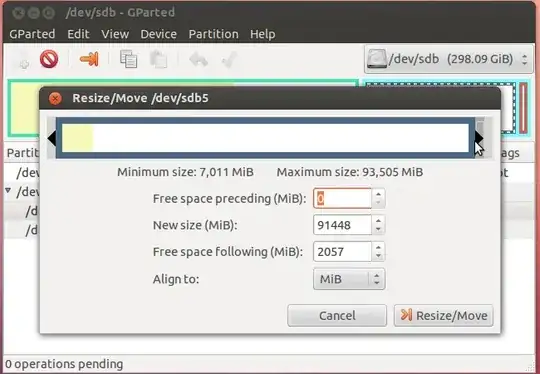
  4. Choose the partition to resize and choose the new size and then apply
  5. When end reboot and be sure to remove the iso file attached to the VM CD ROM, and boot to your Ubuntu.

enter image description here

hildred
  • 5,759
  • 3
  • 30
  • 43
Maythux
  • 1,848
  • 13
  • 19