I want to add a software to the "open with" other applications list that drops down after clicking on a photo to open. I installed Photoscape on my Linux Mint 16 system but it does not show in the list of choices to open a photo. i want to make it my default viewer for photos. At the bottom under other applications it says you can add a custom command to add a software to the list and also make it your default viewer. I have no idea how to do this or where many things are located in Linux Mint 16. I am new to Linux and don't know all the Linux tech talk or codes. So, things like creating shells, custom commands or other actions not needed in Windows is foreign to me. I am not a computer geek.
Asked
Active
Viewed 3,083 times
3

-
Did you install the windows version of Photoscape? Could you please post the URL of what you installed in particular? This is required for the command that will open your files with Photoscape. Basically you could either create a new file in ~/.local/share/applications and in there you associate the file types to be opened with Photoscape. The more obvious way would be to add associations via Linux Mint control center or file manager, see e.g. http://forums.linuxmint.com/viewtopic.php?f=190&t=130673 for that. – doktor5000 Dec 31 '14 at 12:28
-
I don't know how to get to ~/.local/share/applications or the Linux Mint control center. I am not experienced in Linux and I'm not the computer geek type. This is why I posted the question on this website. As for the URL it is http://www.oaultimate.com/computers/install-photoscape-3-6-on-ubuntu-11-10.html. Photoscape does not have a Linux version. This is why I used the codes from this website to load it on my Mint 16 system. – Caveman Jan 01 '15 at 05:31
2 Answers
1
OK, I tried it with PhotoScape locally and the file association is working, e.g. "Open with" context menu from file manager offers PhotoScape for .jpg files.
What you basically need to do is explained in Configuring File Associations in Ubuntu with Wine and partly in http://blog.thewebsitepeople.org/2010/12/nautilus-open-with-mime-type-associations/
You need to create two files
- one script that will convert the path to the file you want to open with PhotoScape so that wine can access it
- one .desktop file that associates the mime types (e.g. jpg, .png, .bmp or whatever you need) with the abovementioned script
The script ~/.local/share/applications/photoscape.sh looks like this here:
#!/bin/sh
param=
while [ "$1" ]
do
        param="$param Z:$1"
        shift
done
wine "C:\Program Files\PhotoScape\PhotoScape.exe" $param
What it does is to add Z: (that is the drive letter where wine will see the rest of your linux system's directory structure on most distributions) to the path of the image that you want to open with PhotoScape.
The .desktop file ~/.local/share/applications/photoscape.desktop which in my example associates .jpg files with the abovementioned script looks like this:
[Desktop Entry]
Version=1.0
Type=Application
Terminal=false
Name=PhotoScape
Exec=~/.local/share/applications/photoscape.sh
Path=/home/doktor5000/.wine/dosdevices/c:/Program Files/PhotoScape
Icon=8FC0_PhotoScape.0
MimeType=image/jpeg;
Create both files, important part is that the .desktop file is located either in ~/.local/share/applications or in /usr/share/applications if you want to enable the association with PhotoScape for all users.
After creating those two files, close your file manager, reopen it and right-click on a .jpg file, and it should offer to open it with PhotoScape.
EDIT:
As the OP has asked for easy way to create those files via terminal commands, what follows is a complete session to create both files. All commands should be run as a normal user NOT as root as that is not necessary at all. My prompt is also included in the output and looks like this:
┌─[doktor5000@Mageia5]─[00:30:08]─[~] └──╼
the files do not exist
┌─[doktor5000@Mageia5]─[00:34:14]─[~]
└──╼ ls -al ~/.local/share/applications/photoscape*
ls: cannot access /home/doktor5000/.local/share/applications/photoscape*: No such file or directory
creating the containing folder in case it does not exist
┌─[doktor5000@Mageia5]─[00:34:15]─[~]
└──╼ mkdir -p ~/.local/share/applications
creating the first file via a so-called here document
┌─[doktor5000@Mageia5]─[00:51:42]─[~]
└──╼ cat << 'EOF' > ~/.local/share/applications/photoscape.sh
> #!/bin/sh
> param=
> while [ "$1" ]
> do
>         param="$param Z:$1"
>         shift
> done
> wine "C:\Program Files\PhotoScape\PhotoScape.exe" $param
> EOF
┌─[doktor5000@Mageia5]─[00:52:07]─[~]
└──╼
Hint: The command you run is cat << 'EOF' > ~/.local/share/applications/photoscape.sh and when you press enter, the cursor will jump to the next line and display the > character instead of your normal prompt. Then insert the content of the file as I have posted it above, without the > characters, those will be added by your shell automatically. On the last line, you need to enter EOF ( short for end of file ) and press return key, and the here document will be written to the file ~/.local/share/applications/photoscape.sh and your normal prompt will return.
adding executable permission to the script and checking the result
┌─[doktor5000@Mageia5]─[00:52:07]─[~]
└──╼ chmod +x ~/.local/share/applications/photoscape.sh

┌─[doktor5000@Mageia5]─[00:56:23]─[~]
└──╼ ls -al ~/.local/share/applications/photoscape.sh
-rwxr-xr-x 1 doktor5000 doktor5000 123 Jan  3 00:52 /home/doktor5000/.local/share/applications/photoscape.sh*

┌─[doktor5000@Mageia5]─[00:56:28]─[~]
└──╼ cat /home/doktor5000/.local/share/applications/photoscape.sh
#!/bin/sh
param=
while [ "$1" ]
do
        param="$param Z:$1"
        shift
done
wine "C:\Program Files\PhotoScape\PhotoScape.exe" $param
┌─[doktor5000@Mageia5]─[00:57:07]─[~]
└──╼
adding the .desktop file, same as before
┌─[doktor5000@Mageia5]─[00:57:07]─[~]
└──╼ cat << EOF > ~/.local/share/applications/photoscape.desktop
> [Desktop Entry]
> Version=1.0
> Type=Application
> Terminal=false
> Name=PhotoScape
> Exec=~/.local/share/applications/photoscape.sh
> Path=/home/doktor5000/.wine/dosdevices/c:/Program Files/PhotoScape
> Icon=8FC0_PhotoScape.0
> MimeType=image/jpeg;
> EOF
┌─[doktor5000@Mageia5]─[01:07:40]─[~]
└──╼
make it executable to make it a "trusted" desktop file and checking the result:
┌─[doktor5000@Mageia5]─[01:11:01]─[~]
└──╼ chmod +x ~/.local/share/applications/photoscape.desktop
┌─[doktor5000@Mageia5]─[01:11:10]─[~]
└──╼ ls -al ~/.local/share/applications/photoscape.desktop
-rwxr-xr-x 1 doktor5000 doktor5000 234 Jan  3 01:07 /home/doktor5000/.local/share/applications/photoscape.desktop*
┌─[doktor5000@Mageia5]─[01:11:55]─[~]
└──╼
Now finally if you open your file manager, and right-click on any .jpg file, PhotoScape should appear in the "Open with" context menu. It looks like this here (your filemanager is probably nautilus and it will look differently in general but hope you get the idea)
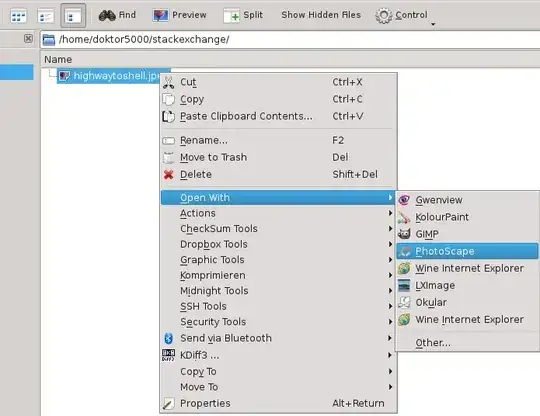
Apart from that, the problem seems to me that you have issues with basic actions like finding the Mint control center, hence my proposal would be to either find a local IT shop that can help you with this on your system. Or the second option would be to open a thread in Linux Mint support forum so that they can guide you through this.
From my personal experience with similar topics it is really hard to guide novices through such complex procedures. I could even provide you with terminal commands to create those two files or via a text editor of your choice, but as you seem to struggle with this, it may be quite a long way to get to the point where it works for you.
In any case, feel free to ask.


doktor5000
- 2,689
- 15
- 30
-
Well, it is true that anyone who never used Linux will not understand many of the functions or where everything is located. This should all be in the user guide. You can just tell me where things are located and then I will know. It is easier to use previously created scripts or codes to enter in the terminal for creating actions or loading software. I loaded Photoscape and Google Earth by getting the codes off of websites that gave simple directions using the terminal. If you give me the codes to enter in the terminal then I will try that and see what happens. Linux needs more than forums. – Caveman Jan 02 '15 at 18:46
-
In addition to what I wrote above, I don't have issues with basic functions or finding anything if there is a way to learn this information. The guide does not explain many things in Linux operations and even the computer repair man I know has not learned any more than I have. To learn anything you need either a proper written guide for new users or someone to talk to who has the information and experience. Everyone learns faster by talking to someone who already knows the answer. Also, simple steps written out in blogs helps anyone to learn a new ability. – Caveman Jan 02 '15 at 18:59
-
Well, you cannot put all the stuff around linux in the normal user guide of normal desktop distributions, that is just wishful thinking. Simply have a look at the sheer volume and size of e.g. http://www.tldp.org/ What I can recommend for reading is http://rute.2038bug.com/index.html.gz For a similar topic and related discussion, including more pointers to basic documentation around linux and computing please refer to https://forums.mageia.org/en/viewtopic.php?p=48481#p48481 – doktor5000 Jan 02 '15 at 23:42
-
I followed your instructions and nothing happened. At one point it said command not found. That may be the problem. I went to usr/share/applications and Photoscape is not seen with the other applications. I have my desktop icon that opens the software and it is listed in the menu applications but that is it, other than downloads. I am using Linux Mint 16 Cinnamon, in case it makes a difference. Maybe I need to install something else for this to work. I tried your instructions twice but Photoscape was not added to the list. It should not be this complicated. Thanks for trying. – Caveman Jan 03 '15 at 05:49
-
At which point did it say "command not found" ? No external commands are used here, but you have to be more verbose, otherwise people cannot help you properly via remote support. PhotoScape is not located in /usr/share/applications but in ~/.local/share/applications/wine/Programs/PhotoScape/ . Can you please show the output of ```ls -al ~/.local/share/applications/photoscape*``` The other thing would be to verify that drive Z: in wine is mapped to your / filesystem. Can you please open ```winecfg``` and check on the "drives" tab is drive Z: is mapped to / – doktor5000 Jan 03 '15 at 10:50
-
You're the first person ever to accuse me of not saying enough. Remember, you can't type much in here before it says you went over the character limit. Then you have to start another comment box. What comes up after placing ls -al ~/.local/share/applications/photoscape* in the terminal is -rw-r--r-- 1 caveman caveman 0 Jan 3 00:33 /home/caveman/.local/share/applications/photoscape.desktop -rw-r--r-- 1 caveman caveman 140 Jan 3 00:27 /home/caveman/.local/share/applications/photoscape.sh. I did verify drive Z and it is mapped to the / file system. – Caveman Jan 04 '15 at 00:28
-
There is a couple things I should mention. There is now a Photoscape.Ink icon on the desktop that was not there before. Also, after rebooting today the Photoscape.desktop words showed up in the "open with" list but it does not do anything. I chose it after clicking on a photo to open but nothing happens. I might have mentioned that at the bottom of the other applications list it says you can type in a custom command name to add a software to the list for opening a file or photo. If I had a custom executable file then I could just place that name in the space for adding to the list. – Caveman Jan 04 '15 at 00:36
-
For your previous comment, you did not make both files executable, you forgot the chmod +x bits. Also /home/caveman/.local/share/applications/photoscape.desktop is of size zero, meaning it's empty. You could now simply open it with any text editor that Mint offers (maybe gedit ? ) and paste the content in there. – doktor5000 Jan 04 '15 at 00:42
-
I just copied what was above. I did not know I was placing chmod +x bits anywhere. What content am I pasting in the photoscape.desktop? Also, I can't find where photoscape.desktop is located. Photoscape.Ink is on my desktop but I only saw Photoscape.desktop in the other applications list, which does nothing when i click on it. I may have a different sytem set-up than you. I don't know. The computer guy I know has Mint 16 KDE and it is dot the same as the Cinnamon version I have. I placed /home/caveman/.local/share/applications/photoscape.desktop in the terminal but it said permission denied. – Caveman Jan 04 '15 at 05:18
-
For the content of photoscape.desktop, see the initial post above, it shows the content. For the location, the full path is shown too. The only thing is that /home/caveman/.local/ is a hidden directory, so in your file manager you may need to enable the display of hidden files/folders. Then navigate to /home/caveman/.local/share/applications/ and open the file with any text editor and paste the content. And you still need to run ```chmod +x ~/.local/share/applications/photoscape.sh``` and ```chmod +x ~/.local/share/applications/photoscape.desktop``` as shown above in the instructions. – doktor5000 Jan 04 '15 at 11:11
-
I found the empty photoscape.desktop file in the applications with the WINE folder. I pasted the above content in there from your original answer. That is as follows. – Caveman Jan 05 '15 at 02:59
-
[Desktop Entry] Version=1.0 Type=Application Terminal=false Name=PhotoScape Exec=~/.local/share/applications/photoscape.sh Path=/home/doktor5000/.wine/dosdevices/c:/Program Files/PhotoScape Icon=8FC0_PhotoScape.0 MimeType=image/jpeg; However, do I just paste chmod +x ~/.local/share/applications/photoscape.sh in the terminal and hit Enter? Should I do the same with chmod +x ~/.local/share/applications/photoscape.desktop? I should mention that I found other Photoscape.desktop files under applications in the same location as the empty one. – Caveman Jan 05 '15 at 03:15
-
For your question: _do I just paste chmod +x ~/.local/share/applications/photoscape.sh in the terminal and hit Enter? Should I do the same with chmod +x ~/.local/share/applications/photoscape.desktop?_ Yes exactly for both. – doktor5000 Jan 06 '15 at 00:21
-
I must be doing something wrong or leaving something out. Nothing has changed but I now have a bunch of Photoscape folders that I did not before and they are not serving a purpose. I think I will have to talk to someone on the phone who knows Linux in detail. A simple task like having a software name in the open with list that functions should not be this complicated. Most people using Linux don't learn any of this because it was never necessary in other operating systems. As the computer guy I know says, most people don't have the need or desire to learn codes, scripts, shells ect. – Caveman Jan 06 '15 at 04:10
-
To be honest, I don't see this ever working for me unless someone has an easier solution, such as creating a custom command for me that I can just enter in the space under other applications that will make the photoscape.desktop name in the menu function. There is a ENV name in that list that opens the home page for photoscape, as if I clicked on the desktop icon. However, that is not what I want and it can't be removed from the list either. – Caveman Jan 06 '15 at 04:16
0
A solution is to look for the *.desktop file for that particular program (for example, photoshop.desktop) and add % F at the end of the line starting with Exec
I did this process for stata14. In my Ubuntu 15.01 machine I found the file in the following folder
cd /usr/share/applications/
sudo vim stata14.desktop
The file initially was like this:
  1 [Desktop Entry]
  2 Version= 14.1
  3 Terminal=false
  4 Icon=/usr/share/icons/stata14.png
  5 Type=Application
  6 Categories=Education;Scientific;
  7 Exec=/usr/local/stata14/xstata-mp
  8 MimeType=application/x-stata-dta;application/x-stata-do;
  9 Name=Stata/MP 14
 10 Comment=Perform statistical analyses using Stata.
I modified only the 7th line and added %F at the end:
7 Exec=/usr/local/stata14/xstata-mp %F

pietro
- 231
- 2
- 3