4

I just did a scan with my new Brother multifunction CP-7065DN printer using the SANE frontend gscan2pdf. The paper in question was handwritten, and the scan was too light. When I reprinted the scan, it was significantly lighter than the original; too light.

I'm interested in ways to fix this problem. Two different approaches come to mind:

  1. Fix the problem by adjusting the settings in SANE (or it's frontends).
  2. Post process the scan to improve the contrast, using only free software that runs on Unix-like platforms, naturally.

The other possible option that comes to mind, namely adjust the hardware settings, don't seem to be an option with this Brother printer, and would be off-topic on this site anyway.

As far as 1 goes, maybe there are settings even in gscan2pdf that would fix this problem, but I could not make sense of them. I quite like gscan2pdf. It is nice and simple and does what I need, which is to scan to PDF for A4 sized paper. However, I'd consider using another SANE frontend. As for 2, I came across the unpaper project whose purpose is to post-process scans, but I could not figure out if improving contrast was something it would do.

If someone knows how to do this, I'd appreciate a pointer, preferably with a little detail. A mini-tutorial, as it were.

Faheem Mitha
  • 34,649
  • 32
  • 119
  • 183
  • There's this app: https://github.com/Flameeyes/unpaper. – slm Jun 16 '14 at 00:46
  • One thing to check: Open one of the scanned images in GIMP. Go to Colors -> Levels. The "input levels" shows you which values (brightnesses) are used. You'll see one peak for the paper color, it should ideally be at the far right. There should be a broader peek for the ink color, hopefully fairly far to the left (at least for black ink). You can also adjust the three sliders underneath to fix the contrast. BTW: Right of "reset channel", there are buttons for linear and log scale; look at both if needed. – derobert Jun 16 '14 at 20:11

2 Answers2

3

I don't have a scanner hooked up to my Fedora 19 laptop so I cannot give you tried and verified advice, so these are bits and pieces of things that I've been able to find that may help you out.

Tip #1

I found this thread titled: Re: How do I brighen up scan in gscan2pdf which offered this approach via the gscan2pdf GUI.

Click the Scan button and set following properties:

  • use "Lineart" setting
  • use 300 dpi
  • use "Threshold" set to 50

Then on the first tab, click the "Options" button - Black Threshold 0.48 - White threshold perhaps 0.9

When saving document, in the compression menu, choose PNG.

Tip #2

Try using the application unpaper to cleanup your scans. I'm not sure how much improvement it can do for scans that are already too light, but it might be worth a look.

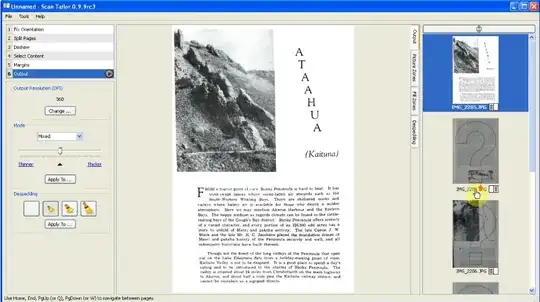
There's a frontend tool that makes use of unpaper called scantailor. Both should be in your distro's repos. I also found a tutorial video that shows how to make use of scantailor to clean up the digitizing of a book, along with another which is just a generic tutorial.

   ss #1

Tip #3

I found this tutorial titled: Linux, OCR and PDF: Scan to PDF/A which might provide some methods for improving your scans.

slm
  • 363,520
  • 117
  • 767
  • 871
1

This question was originally motivated by a handwritten letter, which scanned very poorly with gscan2pdf - the handwriting was very faint in the scan.

I found a simple remedy to this. By default gscan2pdf has Scan mode set as 24bit Color[Fast], whatever that means. At any rate, changing that to the Black&White option dramatically improved the sharpness of the handwriting of my (B&W) letter. Since basically everything I scan is a B&W document, I think I will use this setting all the time. I don't see why having this settings should make so much difference though.

The other two settings I've changed from the default is the Scan resolution (under Mode) from 200 to 300. I'm guessing that is dpi. I'm not sure what the optimal resolution is, but 200 seems low. Additionally, I've set Paper size (under Geometry) to A4.

Faheem Mitha
  • 34,649
  • 32
  • 119
  • 183