30

I am running Linux Mint Debian edition (essentially Debian testing) and the Cinnamon desktop environment. Every time I launch google-chrome it asks to become the default browser. I have told it to do so in all ways I can think of but I still get this pop-up:

enter image description here

What I have tried:

  • Clicking on "Set as default" in the pop-up.
  • Making chrome the default in its settings:
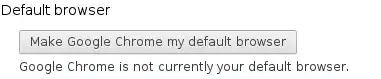
    enter image description here

  • Using my desktop environment's (cinnamon) settings app to set it as default:
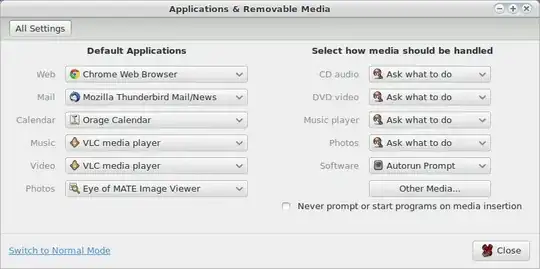
    enter image description here

  • Associating it with all relevant mimetypes in the various ways and files where such things are defined:

    $ xdg-mime query default text/html 
    chrome.desktop
    
    $ grep chrome .local/share/applications/mimeapps.list
    text/html=chrome.desktop
    x-scheme-handler/http=chrome.desktop
    x-scheme-handler/https=chrome.desktop
    x-scheme-handler/about=google-chrome.desktop
    x-scheme-handler/about=google-chrome.desktop;
    text/html=emacs.desktop;google-chrome.desktop;firefox.desktop;
    x-scheme-handler/http=chrome.desktop;
    
    $ grep chrome /usr/share/applications/defaults.list
    application/xhtml+xml=google-chrome.desktop
    text/html=google-chrome.desktop
    text/xml=gedit.desktop;pluma.desktop;google-chrome.desktop
    x-scheme-handler/http=google-chrome.desktop
    x-scheme-handler/https=google-chrome.desktop
    

    In those files, I replaced all occurrences of firefox (my previous default) with google-chrome. No other browsers are defined anywhere in the file:

    $ grep -E 'firefox|opera|chromium' /usr/share/applications/defaults.list \ 
       .local/share/applications/mimeapps.list
    $ 
    
  • Launching chrome as root in case that helps but it won't let me:
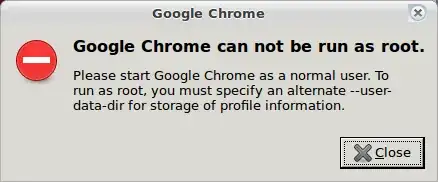
    enter image description here

  • Using Debian's alternatives system to set it as default:

    $ sudo update-alternatives --install /usr/bin/www-browser www-browser /usr/bin/google-chrome 1080
    update-alternatives: using /usr/bin/google-chrome to provide /usr/bin/www-browser (www-browser) in auto mode
    
    $ ls -l /etc/alternatives/www-browser
    lrwxrwxrwx 1 root root 22 Jan 23 17:03 /etc/alternatives/www-browser -> /usr/bin/google-chrome
    

None of these seem to have any effect. Will no one rid me of this turbulent pop-up?

terdon
  • 234,489
  • 66
  • 447
  • 667
  • 16" mbp/macOS catalina. Can't get anything to work. Changing Preferences json `check_default_browser: false` will not work, and opening from the command with the `--no-check-default-browser` flag won't work either. If anyone has any ideas, let me know. I use FF by default. At this point, I'll just have to click "Keep Firefox" everytime I open chrome. Fortunately my machine+workload isn't that bad, I could just keep chrome open. – Devin Rhode Mar 31 '20 at 22:27
  • This is an old crbug thread on buggy --no-check-default-browser: https://bugs.chromium.org/p/chromium/issues/detail?id=348426 - Please star this issue! (or link to a more precise crbug if you can find one) – Devin Rhode Mar 31 '20 at 22:29

7 Answers7

25

For Chromium, when I choose "Don't ask again", Chromium stores the following setting in my ~/.config/chromium/Profile 1/Preferences file:

{
   "alternate_error_pages": {
      "enabled": false
   },
   "apps": {
      "shortcuts_have_been_created": true
   },
   "autofill": {
      "negative_upload_rate": 1.0,
      "positive_upload_rate": 1.0
   },
   "bookmark_bar": {
      "show_on_all_tabs": true
   },
   "bookmark_editor": {
      "expanded_nodes": [ "1" ]
   },
   "browser": {
      "check_default_browser": false,
      [...]

For standard Google Chrome:

  1. Close Chrome.
  2. In Terminal, paste open ~/Library/Application Support/Google/Chrome/Default/Preferences (and then hit enter)
  3. search for "browser":{​ and replace it with "browser":{"check_default_browser":false,

When you start chrome back up it shouldn't prompt you anymore.

Note:

The preferences setting seems to differ substantially between chrome versions. On Chrome-78.0 the setting

"browser":{"default_browser_infobar_last_declined":"13236762067983049"}

seems to work. I assume it simulates clicking the x.

AdminBee
  • 21,637
  • 21
  • 47
  • 71
Martin von Wittich
  • 13,857
  • 6
  • 51
  • 74
  • It's `~/.local/google-chrome/` instead of `~/.local/chromium/` in Linux Mint 20.1. Also, after editing `Preferences`, don't forget to validate JSON. – Polv May 29 '21 at 13:07
  • I have no idea how I will look like at November 6 of year 419458261, but this is a great answer! ;) – Aquarius Power Feb 11 '22 at 00:28
  • For future readers - neither of these solutions works for macOS Chrome-106. – alexykot Oct 17 '22 at 08:28
  • 1
    They still don't work on macOS for Chrome 114. I ran this command to update my profile (non-default), which has updated the file as intended, but hasn't stopped the default browser pop-up. `echo $(cat Preferences | jq '.browser += {"check_default_browser": false}' --monochrome-output --compact-output) > Preferences` – Matt Jun 06 '23 at 12:35
13

found the solution:

When you get the question again, don’t press the button that makes Chrome the default browser, but click on the far right of the bar on the X to make the bar disappear. Big chance it won’t come back.

via a manjaro forum post

Jason Lewis
  • 175
  • 1
  • 6
  • 4
    This seems to be irrelevant to terdon's question of 2014 (IIUC, he had an explicit "Don't ask again" button, which didn't work). But it's quite useful in 2019 (when there's no "Don't ask again" button, but "x" does the job). It's really quite counter-intuitive UX decision in Chrome/Chromium (I'd expect "x" to mean "hide this now", but not "forget it forever"). – sasha Apr 24 '19 at 15:37
  • solved my problem. – Syrtis Major Jan 18 '20 at 13:00
  • I tried this and I can confirm it works! – Mahmoud Aug 25 '20 at 11:34
6

Here is a quick solution as worth as the one above I guess but different: Run in a terminal :

echo '# Disable set default browser
export CHROMIUM_FLAGS="$CHROMIUM_FLAGS --no-default-browser-check"' \
| sudo tee /etc/chromium.d/disable-set-default-browser

It will create a file that will launch Chromium without checking ... Very useful when the "don't ask again" question doesn't pop up :)

Rui F Ribeiro
  • 55,929
  • 26
  • 146
  • 227
David Gouzien
  • 61
  • 1
  • 1
  • Darn. That looked very promising, but there was no `/etc/chromium.d/` directory on my Ubuntu system, and making it had no effect. – Auspex Jul 14 '18 at 15:57
  • I am also using this `--no-default-browser-check` flag. Works like a charm! You can also create a launcher "desktop" file in `~/.local/share/applications/` so that when you click to open the app from launcher/favorites bar, it runs with this flag. See here for more about the desktop files: https://askubuntu.com/questions/461943/how-do-i-open-chromium-in-incognito-mode-by-default – pestophagous Aug 03 '19 at 19:37
0

Why manual edits?
Just "Click on "Don't ask again" in the pop-up." as indicated.

I don't see any indication in your question that you have tried that.

Michael Durrant
  • 41,213
  • 69
  • 165
  • 232
0

I managed to solve this, in Ubuntu 20.04, by editing ~/.local/share/applications/google-chrome.desktop. Look for Exec and add -no-default-browser-check to it, like this:

Exec=/usr/bin/google-chrome-stable -no-default-browser-check %U

You may need to logout and login for it to take effect. I also noticed I had a lot of google-*-Default.desktop in ~/.local/share/applications. I removed them and copied /usr/share/applications/google-chrome.desktop to ~/.local/share/applications/.

0

The most voted answer this is not the case on my machine but definitely leads to the right solution..

I would suggest that you just run..

cd ~/.config/chromium/
grep -ri check_default_browser

Then edit the corresponding file(s) to false.

  • 1
    How is this different from the accepted answer? Did you have to edit another file? Was it not the `Preferences` file that was in your default chrome profile? That should be `~/.config/chromium/SOMETHING/Preferences`. – terdon Nov 23 '20 at 09:16
0

This worked for me in 2021

On your computer, open Chrome. At the top right, click More More and then Settings. Under “You and Google,” select Sync and Google services. Turn on or off Help improve Chrome's features and performance.

After I did that, It never prompts this popup